File Manager User Guide
Interactive documentation and technical reference manual for File Manager (v1.7.3).
File Manager Key Features
File Manager (v1.7.3) is a high-performance, multi-pane file explorer engineered to accelerate your desktop workflow. It is designed to elevate workspace efficiency with near-instant local indexing and robust native tools.
-
Near-Instant Local SearchA local search database allows for lightning-fast query results across your entire storage workspace.
-
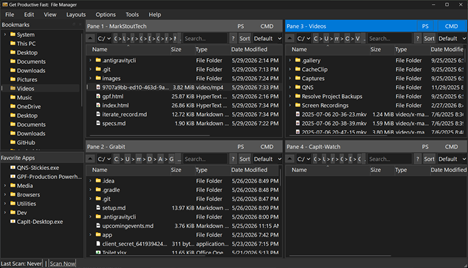
Customizable Multi-Pane LayoutsArrange active browsing panes in vertical, horizontal, or 4-pane grid configurations.
-
Built-in Markdown Viewer & EditorOpen and modify Markdown (.md) documents natively with real-time split previews.
-
Integrated Plain Text EditorModify configuration files, scripts, and plain text documents with theme and font size matching.
-
Custom Column ProfilesConfigure custom column layouts mapping general file system attributes, image parameters, and audio metadata.
1. Getting Started
Launch File Manager using precompiled executables or run it directly from the Python source environment.
Running from EXE or Source
- EXE (Recommended): File Manager is distributed as a standalone Windows executable (
GPF-File Manager.exelocated inside thedistfolder). Simply double-click the file to launch. No setup or installation is required. - Python Source: If you prefer to run from source code, execute the startup command in your terminal:
py filemgr_ongoing.py
First-Run License
The first time you run the application, you will be presented with a license agreement dialog. You must accept this agreement to proceed. The application will securely remember your choice in your local settings config and won't prompt you again on subsequent launches.
2. The Interface & Layouts
The workspace layout is structured for maximum visibility, flexibility, and productivity.
Main Work Areas
- Sidebar (Left):
- Bookmarks: Quick-access list of common paths (Desktop, Documents, etc.) and custom directories.
- Favorite Apps: Custom application shortcuts (e.g.,
.exefiles) for quick launching.
- File Panes (Center): The primary workspace. Each pane operates independently, allowing you to browse, search, and manage different directories concurrently.
- Status Bar (Bottom): Displays the last scan timestamp of your search database and includes a "Scan Now" link to trigger a manual database rebuild.
Multi-Pane Layout Modes
Access the Layouts menu to switch layout configurations on the fly:
- 1 - 4 Panes: Arrange your active file panes in Vertical, Horizontal, or Grid patterns.
- Layouts + Props: Layout options ending in
+ Propsdisplay a dedicated Properties Pane next to your file panes for instant metadata viewing.
4. File Operations & "Safe Trash"
Perform standard file modifications and utilize safety-first staging systems to prevent accidental file deletion.
Basic Actions
- Cut / Copy / Paste: Standard Windows shortcuts (Ctrl + X, Ctrl + C, Ctrl + V) work seamlessly between different panes.
- Rename: Press F2 or right-click a file and select "Rename".
- Safe Trash: Deleting files (pressing Del) moves them to an internal App Trash folder first. You can immediately undo the deletion by pressing Ctrl + Z. The App Trash is permanently cleared to your Windows Recycle Bin only when you safely exit the application.
Drag & Drop Mechanics
- Transferring Files: Drag files between active panes to Copy or Move them.
- Adding Shortcuts: Drag any folder into the Bookmarks list to pin it. Drag any
.exeapplication into the Favorite Apps section to create a quick-launch shortcut. - Pane Syncing (Linking): Drag a pane's title bar and drop it onto another pane to automatically sync their active directories.
6. Built-in Markdown Viewer & Editor
File Manager includes a high-fidelity Markdown tool for viewing and editing .md documents natively.
Opening Markdown Files
- Direct Access: Right-click any
.mdfile and choose "View markdown file". - Double-Click Association: Go to Options > Settings... and check "Use Internal Markdown Viewer/Editor". Once enabled, double-clicking any
.mdfile automatically opens it inside the app.
Reader Mode (Standard View)
- Displays the Markdown document rendered into styled HTML matching your application's current Light or Dark theme.
- Hyperlinks are fully active and will open in your default system browser.
Edit Mode (Dual-Pane Split View)
- Click the "Edit" checkbox on the top toolbar to open a side-by-side view: the Rendered Preview (Left) and the Plain Text Markdown Editor (Right).
- Real-time Rendering: The preview pane syncs instantly as you type.
- Scroll Memory: Preserves scroll positions across keystrokes.
- Action Row: Activates bottom buttons to Save, Save As..., and access Help.
Search Drawer & Close Protection
- Search Drawer: Click the "Search" button to open a search drawer. Supports live, incremental search with "Next" (F3) and "Previous" (Shift + F3) navigation.
- Close Protection: If you close the viewer with unsaved changes, the app warns you to save your changes before exiting.
7. Built-in Text Editor
For standard text files, File Manager provides a lightweight, integrated editor.
Interface & Features
- Theme Integration: The editor dynamically styles its background, colors, and margins based on whether you are using the Light or Dark theme.
- Font Matching: Text is displayed in a monospaced font (Consolas/Monospace) configured to match the application's font size settings.
- Tabs: Indentation is configured to a clean, standard 4-space tab stop distance.
- Command Bar: Fast buttons for Cut (Ctrl + X), Copy (Ctrl + C), Paste (Ctrl + V), Delete (Del), Select All (Ctrl + A), and Find (Ctrl + F).
Search Drawer & Close Protection
- Search Drawer: Search within the text editor with wrap-around, matching count status, and Next/Previous navigation.
- Close Protection: Prompt guards you against losing changes when closing the editor window.
8. Advanced Search Syntax
The application indexes your drives in the background so you can find files instantly. Enter your queries in the search box above any pane. Filter your searches by combining keywords and properties (separated by spaces, implying an AND relation).
| Filter | Syntax | Example |
|---|---|---|
| Extension | ext:<type> |
ext:png or report ext:xlsx |
| File Size | size:[<|>|<=]value |
size:>250MB or size:<10KB (supports B, KB, MB, GB) |
| Modified Date | modified:[<|>|<=]date |
modified:>2025-01-01 (YYYY-MM-DD) |
| Created Date | created:[<|>|<=]date |
created:<2024-12-31 |
| Exact Name | name:<exact_match> |
name:hosts (Literal filename match) |
*Note: If a newly created file does not appear in your search results immediately, click the blue "Scan Now" link at the bottom of the window to force a database update.
9. Customization & Settings
Adjust your preferences, set up custom editors, and design metadata profiles for files and audio/image media.
Configurable Preferences (Options > Settings...)
- Theme: Select
lightordarkmode. Styling of all panels and editor backgrounds updates instantly. - Font Size (pt): Adjust the system-wide font size (from 8pt to 20pt) for file lists and editor dialogs.
- Launch at Startup: Automatically run the application when Windows boots.
- Max File Size for Export: Set the maximum size threshold in MB for CSV/metadata report exports.
- Ignore Recycle Bin: Exclude deleted files from search index queries.
- See Hidden Folders: Show or hide system and hidden folders in directory structures.
- Custom Editor Path: Browse and choose a system editor (like VS Code or Sublime) to launch files via the right-click menu.
- Use Internal Markdown Viewer/Editor: Enable double-clicking
.mdfiles to open internally. - Use Internal Text Editor: Enable double-clicking text files to open internally.
- Include HTML files: Allow HTML files to be opened within the internal text editor (only active when the internal text editor is checked).
Custom Column Profiles (Options > Fields...)
Customize columns for the detailed file pane view and the Properties pane:
- Open Options > Fields... or right-click column headers.
- Drag and drop metadata fields into the list views:
- Images: Date Taken, Dimensions, Resolution, ISO, Camera Model, F-Stop.
- Music: Artist, Album, Duration, Bitrate, Year, Genre.
- General: Date Modified, Date Created, Date Accessed, File Owner, Permissions.
10. Keyboard Shortcut Quick Reference
| Keyboard Bind | Resulting System Action |
|---|---|
| Ctrl + N | Create a new blank file |
| Ctrl + Shift + N | Create a new folder |
| Ctrl + C / X / V | Copy / Cut / Paste |
| Del | Delete file or folder (to App Trash) |
| Ctrl + Z | Undo last file operation |
| Ctrl + Y | Redo last file operation |
| F2 | Rename selected item |
| F5 | Refresh active pane |
| Ctrl + L | Highlight breadcrumb path for text editing |
| Ctrl + F | Open Find drawer inside internal editors |
| F3 / Shift + F3 | Find Next / Previous match inside editors |
| Esc | Close search drawer or dialogs |
File Manager Workspace Screenshot
Review the visual workspace design and flexible multi-pane layout of the File Manager application.
Download File Manager
Get the latest release of File Manager directly from our public GitHub repository. Simply fetch the standalone executable and launch.